

App Creation
How to create an app, choose scopes, and prepare for authentication.
Connecting to your own data?
A service account gives your internal tools and automation direct access to your organization's data using production credentials. See Authentication for setup.
Create New App
- If you already have a Digits account: open Developer (left sidebar), click Create App
Start building with Digits Connect
For a free developer account, sign up at my.digits.com/join/developer.
We'd love to learn more about what you're building! Reach out to [email protected] and let us know how we can help meet your needs.
Choose the install target
Set Installs Into when creating the app:
| Target | Authorization |
|---|---|
| Legal Entity | One business and its app connection per authorization |
| Organization | An organization and its accessible clients or entities per authorization |
The install target is immutable. To adopt organization authorization for an existing entity app, create a new organization-targeted app and have users authorize it. Changing scopes or keys does not change the target.
Setting Identity
Use the Identity tab to enter these fields when creating an app and to update them later.
Identity
| Field | Description |
|---|---|
| App Name | The name of your app, shown in the Digits Dashboard and (eventually) to users |
| Tagline | A one-line summary of your app’s purpose |
| App Icon | Upload a logo for your app |
Your icon is the first thing users see. It appears on the Developer Dashboard, the install/auth screen, and (when available) your app listing. A clear, recognizable icon builds trust.
Summary
| Field | Description |
|---|---|
| Description | Clear overview of what your app does and who it’s for |
| Homepage | Your app’s public website or landing page. Must start with https:// |
| Support Email | The email address that end users should contact for app support |
| Developer Email | Where Digits can reach you for app-related updates or questions |
| Privacy Policy | Optional public URL to your app's privacy policy |
| Terms of Service | Optional public URL to your app's terms of service |
Choose App Permissions (Scopes)
| Scope | Description |
|---|---|
source:sync | Write source data into the Ledger |
ledger:read | Read data from the Ledger |
documents:write | Upload files to Documents |
Use least privilege—request only the scopes your app actually needs. You can adjust later, but changes may require re-authorization and/or regenerating credentials.
Click Save.
Configuration
App Install URL
Enter an optional, valid https:// URL for your app's install flow, which usually begins OAuth. Digits deep links users to this URL when they select Connect from within Digits. For example: https://example-app.example.com/install/digits.
Digits uses this field on published app listings.
Redirect URLs
Define your app's OAuth redirect URLs.
Required for both entity and organization apps (for example,
https://yourapp.com/oauth/callback). Both use authorization codes and refresh tokens. Service accounts use client credentials and do not need redirect URIs. See Authentication.
Requirements
- Full URL (scheme + host + path), e.g.
https://app.example.com/oauth/callback - HTTPS required in production (HTTP allowed for
localhost) - No wildcards (for example,
*example.comis not allowed) - No fragments (for example,
#sectionis not allowed) - Query strings are allowed, but must match exactly
- Trailing slashes must match (
/callback≠/callback/) - IPs not allowed;
localhostis allowed for local development
Use Add Redirect URI to include as many as you need.
Keys
The Keys tab is where you manage your app's development and production credentials.
Environments
Digits automatically issues Development and Production client_ids to Apps. Use the toggle at the top of the page to select which credentials you're viewing.
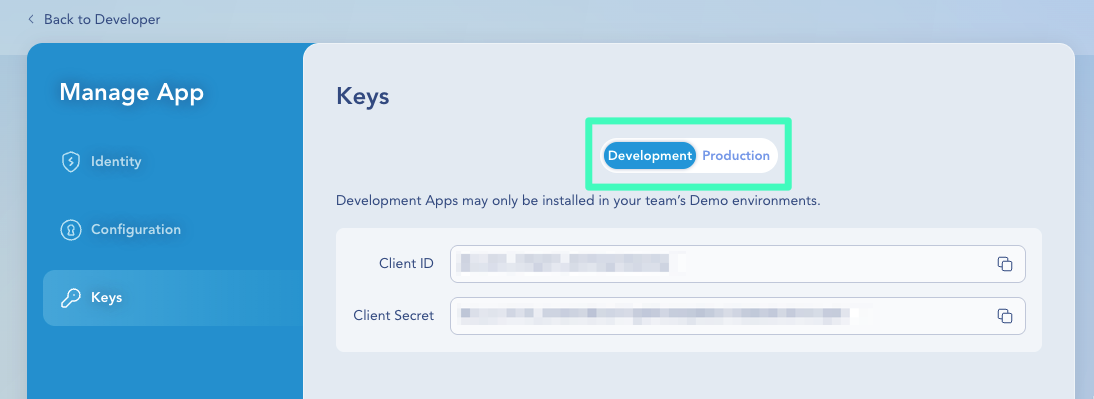
Development — build and test only; installable in your developer sandbox; no approval needed. See Developer Sandbox for install instructions.
Production — live use. Internal apps can be installed without approval when the installer has access to the app and target entity or organization. Approval from Digits is required to install in other customers' entities or organizations; publishing is required to list the app in the Digits Connect integrations list. See Publishing Apps for the full mode breakdown.
Updated 14 days ago
What’s Next
Continue to Publishing Apps to understand app modes, approval, and publishing.